Open site
Open www.opengoon.net in your Chrome browser on Android.
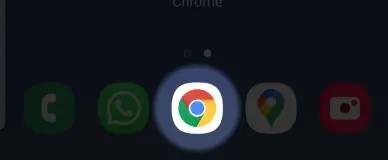
Save OpenGoon to your home screen for quick, app-like access
Follow these steps in Chrome to add a shortcut to your home screen
Open www.opengoon.net in your Chrome browser on Android.
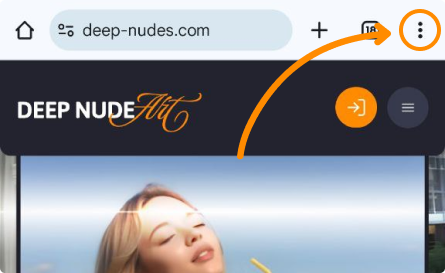
Tap the three vertical dots in the upper right corner to open the browser menu.
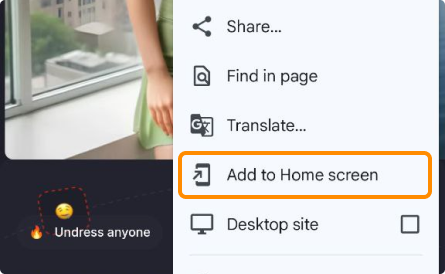
Select Install app or Add to Home screen from the menu (wording may vary by Chrome version).
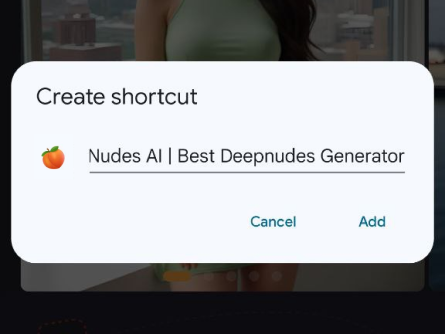
Follow the prompts to confirm the shortcut name (for example, OpenGoon) and add it to your home screen.
Once installed, www.opengoon.net opens from your home screen like a web app with a smooth full-screen experience.
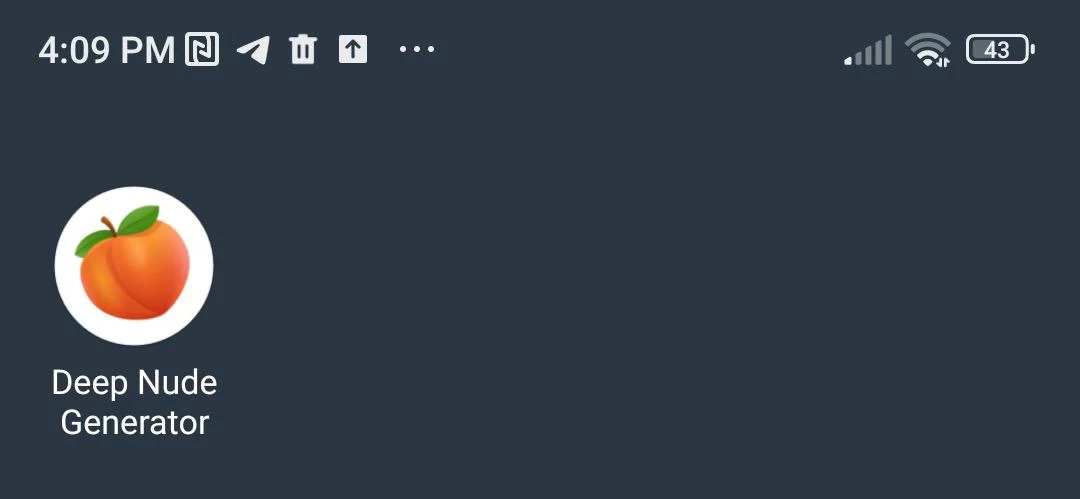
Common questions about saving OpenGoon on Android
No. This creates a home screen shortcut to www.opengoon.net in your browser. It works like a lightweight web app and does not require downloading from the Play Store.
We recommend Google Chrome on Android. Other Chromium-based browsers may support a similar “Add to Home screen” or “Install app” option, but menu labels can differ.
Update Chrome to the latest version, open www.opengoon.net again, and check the three-dot menu. On some devices the option appears under Share or as an install banner at the bottom of the page.
Yes. You can also run OpenGoon through Telegram via /bot without adding a home screen shortcut.
Long-press the OpenGoon icon on your home screen and choose Remove or Uninstall. This only removes the shortcut; it does not delete any account data on OpenGoon servers.
Open the app or launch the Telegram bot in one tap.